Create your first Job
This walkthrough reads a public example page and creates no business record. You need Job editing and Toolbox permissions. Launching an ordinary Session also requires execution permission and available capacity.
Create the Job
Section titled “Create the Job”- Select your project and open Jobs.
- Choose New Job.
- Enter Example page title and a short description.
- Review the inherited Robot kind. Choose Browser if a local override is needed.
- Use Create Job in the window’s title bar.
- Click the saved Job name to open Toolbox.
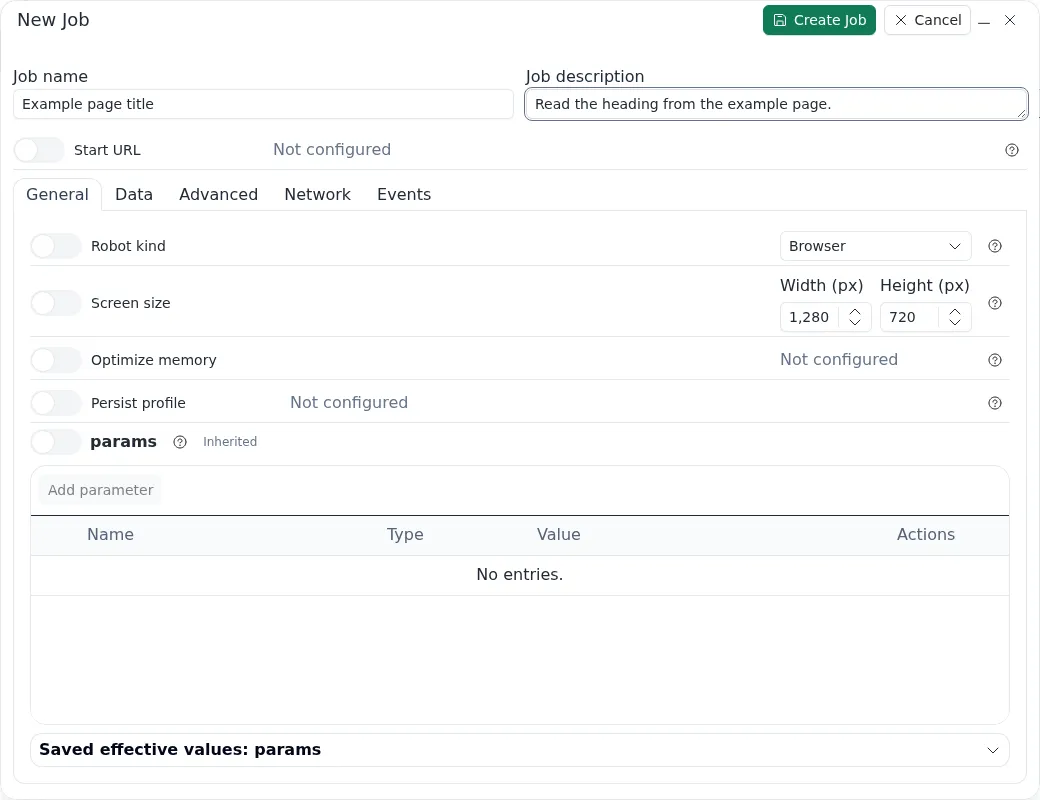
The current New Job form with demonstration data. An inactive override switch means the displayed value is inherited. Creating metadata starts an empty scenario; it does not add actions.
Add and apply three actions
Section titled “Add and apply three actions”Use the plus command below the tree. Choose an action, complete its fields and use Apply action. The action then belongs to the current scenario draft. Cancel discards the pending action edit.
| Action | Configuration |
|---|---|
Navigate / gotoUrl |
Literal URL: https://example.com/. |
Wait / wait |
Type: exists; time: 5000 milliseconds; CSS locator: h1. |
Set / set |
Destination path: pageTitle; CSS locator: h1. |
Keep these fields as literal text. The Set action extracts the heading into a working variable. Apply each action before selecting the next one.
Test the draft
Section titled “Test the draft”- Follow the startup progress until Toolbox is ready.
- Use scenario Play.
- Confirm the example page appears.
- Inspect logs and values;
pageTitleshould be Example Domain.
This scenario has no loops, so the Debug switch does not change its three-action sequence. For loop-based Jobs, Debug advances outer loops one iteration at a time.
Toolbox retains its page and variables between commands. Playing only Set assumes the page is already open. Use the complete sequence to test its navigation and wait together.
Save and run
Section titled “Save and run”- Use Save in Toolbox to persist the scenario.
- Open the Job’s ordinary launch command.
- Review the inputs and confirm.
- Open Sessions, inspect the resulting execution and review its outcome.
Apply action changes the current scenario draft. Save changes the stored Job. Launching a saved Job does not save an unapplied form or Toolbox draft. Next, replace changing literals with named inputs.