Put recurring work on a calendar.
Choose a timezone, check the next run dates and activate the Task. Review its occurrences and the Sessions it launches.
Explore scheduling
Browser · Desktop · Terminal automation
Set up the steps for a task you repeat, from filling forms to collecting data. Test your scenario, then run it again when you need it.
Build and test a scenario before scheduling it.
A small collection Job, from a catalogue to structured rows.
Three fictional products to show the shape of the output.
| Product | Price | In stock |
|---|---|---|
| Desk lamp | €39.00 | Yes |
| Notebook | €8.00 | Yes |
| Headphones | €79.00 | No |
Sample data. This illustration does not run a Robot.
Build with the Toolbox
Keep the scenario, application display, logs and values in view while you work. Try a change before putting the whole Job on a schedule.
Explore the ToolboxPlay an action, a block or one loop iteration. Inspect the values before moving on.
Inspect an element to get a selector proposal. Preview the matches before using it in an action.
Edit and test your scenario, then save when you are ready. Undo and Redo help you recover an earlier edit.
Pass a managed secret as a parameter instead of putting its value in the scenario.
Toolbox in action
Books to Scrape recording with English narration. Setup condensed; run shown at actual speed. The table shows recent collection previews.
Structured collection
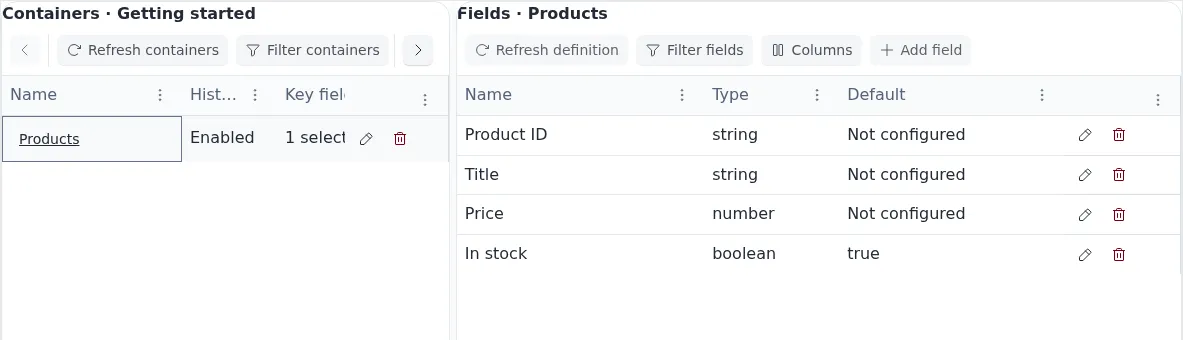
Give your data named fields: a product, a price, a stock status. Preview the collection in Toolbox, then run a Session to save the records.
Make it repeatable
Use parameters for the values that change: a search term, a page address or an item list. Reuse the same scenario instead of maintaining a copy for every case.
Read about parametersThe same search Job
Choose a timezone, check the next run dates and activate the Task. Review its occurrences and the Sessions it launches.
Explore schedulingFollow progress, inspect logs and review the outcome. Use the available pause, resume and stop controls when you need them.
Explore SessionsUse cases
Eyerobot covers browsers, desktop applications and terminals. Start with a supported workflow and build from there.
Pages · Forms · Data
Check a list of pages, repeat form entries or collect data from a catalogue.
Applications · Repeated actions
Build scenarios around repetitive work in desktop applications.
Commands · Output
Bring command-line tasks into your automation work.
You can build supported scenarios with an action tree and parameter forms. The JSON source view is also available when you want to edit the scenario directly.
Yes. Use Toolbox to play the current scenario or a selected action block, inspect the results and make changes. Save the Job before launching an ordinary Session.
You can browse and filter saved records, then export them as CSV, JSON or Excel using the available export options.
Choose one small, repeatable task. The first-Job guide walks through opening a page, reading its title and checking the result.
Eyerobot
Start with one small task. Build it, test it, then decide how often it should run.